March 29th, 2026
New
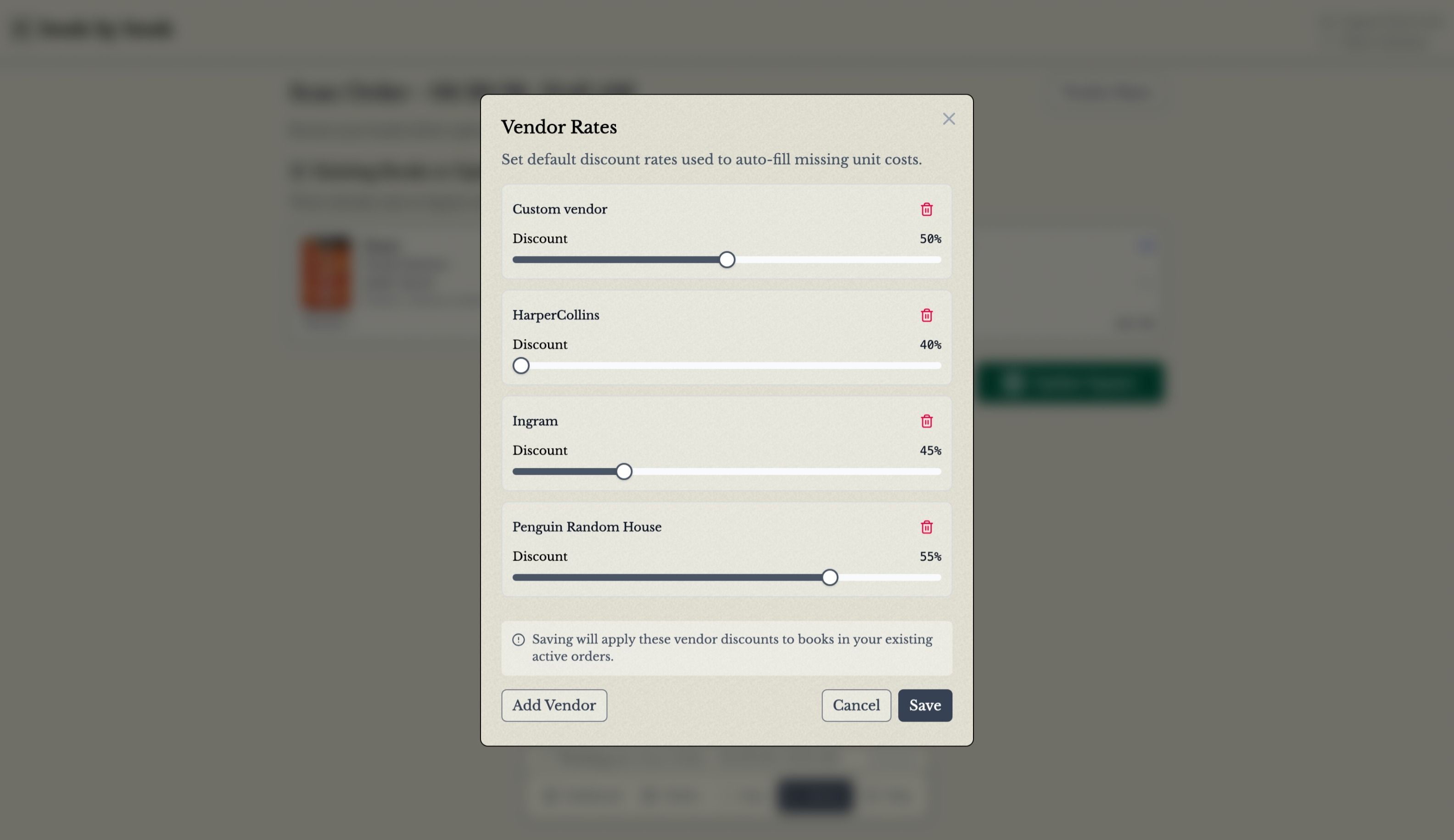
There’s now a more complete vendor tracking workflow for incoming books, with vendor-specific discount settings, smarter cost calculations, and better tools for assigning vendors during order review.
You can now save discount rates for your vendors at the organization level and use them to automatically calculate unit costs from MSRP when a book has a matching vendor. We have a broad selection of common book vendors and publishers to choose from, or you can add your own. When you import orders, new vendors can be added to your saved settings automatically, with discount rates inferred from imported pricing when possible.
Order review is also faster. While reviewing an order, you can assign a vendor to a title, apply that vendor to other books in the order that do not have one yet, and use your saved vendor rates to help fill in missing costs.
For example:
From Order Review, open the Vendor Rates dialog to review or update your saved vendor discount settings.

In the Vendor Rates dialog, add or edit vendors and their discount rates. This is also where you can create custom vendors.

After saving your vendor rates, open a book in the order.
Choose a vendor from your saved vendor list to automatically apply.
If other books in the order do not have a vendor yet, you can apply that same vendor to them in one step.

Your saved vendor rates will be used to help fill in unit costs during review.
As always, let us know if you have questions or feedback!
March 15th, 2026
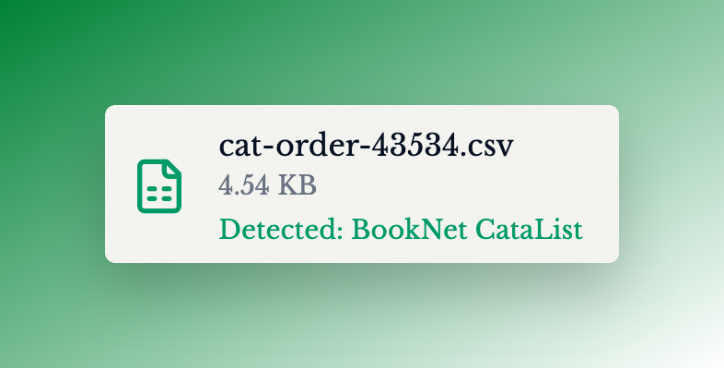
There’s now better support for bookstores operating beyond a USD-only workflow, with BookNet CataList import support, improved multi-currency handling, and more consistent use of your configured Square integration currency.
When creating items in Square, pricing now uses your organization’s configured integration currency instead of assuming USD. Imported and enriched pricing data also does a better job preserving the right currency, which helps unit costs and list prices stay aligned with the market and vendor context you’re actually working in. Money amounts are also shown throughout the interface using the appropriate currency format.
If you use BookNet CataList, you can now import those spreadsheets directly:
From the
Dashboard, selectImport Order File.Upload your CataList spreadsheet.
The format will be detected automatically.
Review the imported books, then continue with your import.
February 15th, 2026
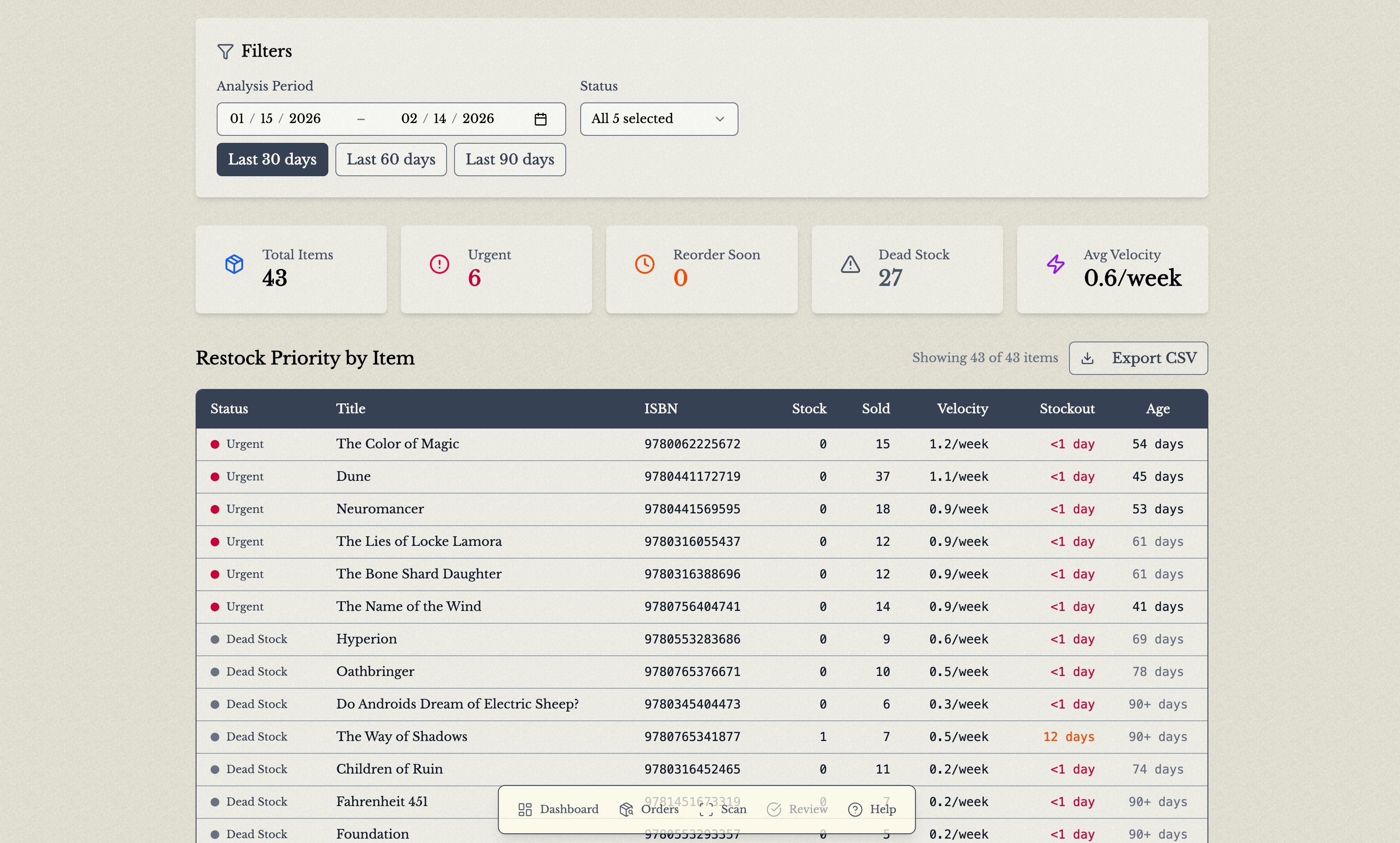
We're excited to announce the Restock Planner—a powerful new report that tells you exactly which books to reorder, and when, before you run out of stock.
Know What to Reorder
See which titles are running low based on actual sales velocity
Priorities automatically ranked from "Urgent" to "Dead Stock"
Color-coded status highlights what needs immediate attention
Avoid Stockouts
Predicts days until each title sells out
Filter items stocking out within 7 or 30 days
Stay ahead of demand on your bestsellers
Order from Your Wholesaler
Export CSV files formatted for PubEasy or Ingram
Quantities automatically calculated based on sales velocity
Customize coverage to match your preferred stock levels
Track Inventory Health
See how long books have been on your shelves
Identify slow movers that may need promotion
Clear out dead stock before it ties up cash
Getting Started
Find the Restock Planner from your Dashboard.
How to use it:
Choose your date range for analysis
Filter by status to focus on urgent reorders
Click Export CSV to generate your wholesaler order
The Restock Planner connects to your Square catalog and sales history, giving you data-driven restock recommendations without the guesswork. Perfect for keeping your bestsellers in stock and your cash flow healthy.
December 28th, 2025
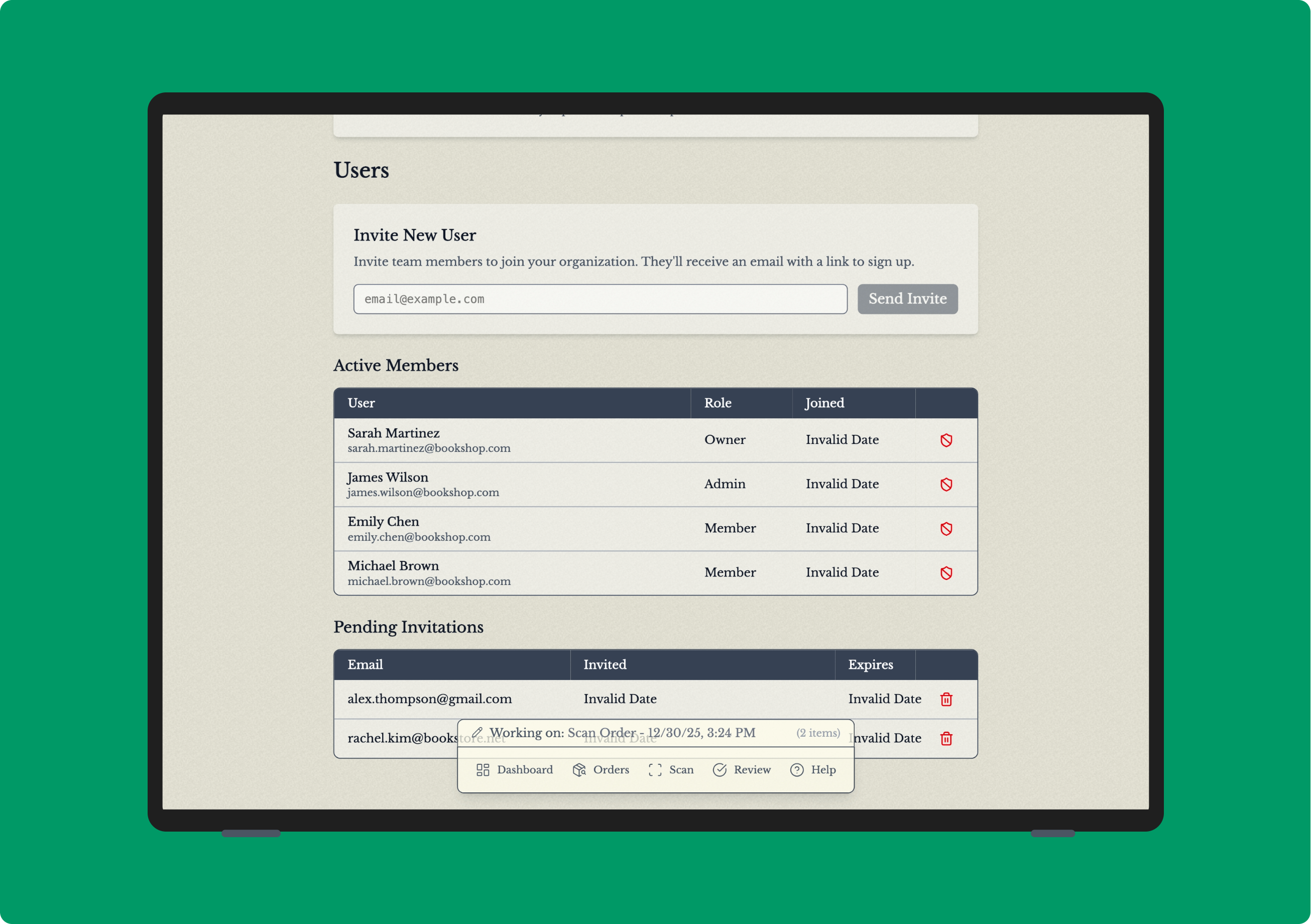
We're excited to announce support for team collaboration! You can now invite other users to join your organization and manage your inventory together, with everyone having their own secure login.
What's New
Invite Team Members
Invite colleagues to join your organization by email from the Settings page
Invited users receive a secure invitation link via email
Invitations expire after 7 days for security
Seamless Onboarding
New users can accept invitations using Google, Facebook, or email login
Invited users automatically join your organization upon completing signup
User Management
View all team members and pending invitations in one place
See when each member joined your organization
Remove pending invitations or deactivate members as needed
Getting Started
Navigate to Settings
Go to the Users section
Enter your teammate's email address and click Invite
They'll receive an email with instructions to join
Your teammates will have access to the same inventory, scanning tools, and Square integration that you do. Perfect for stores with multiple staff members managing book inventory!
As always, let us know if you have any questions or feedback.
December 25th, 2025
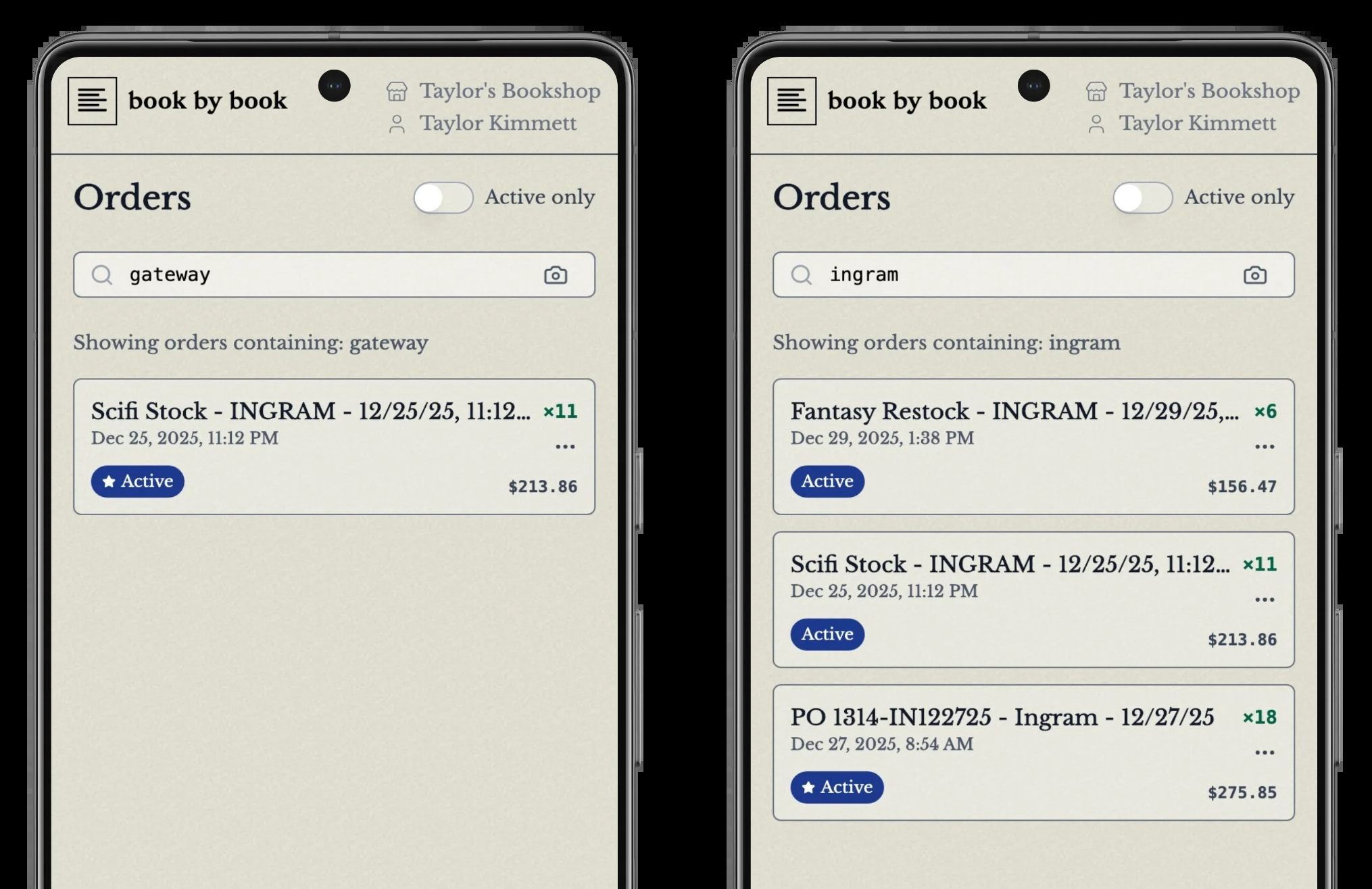
We're excited to introduce Order Search, a powerful new feature that makes finding and managing your book orders effortless.
What's New
You can now search through all your orders instantly using multiple methods:
Search by book title - Find orders containing specific books
Search by author name - Locate all orders with books by a particular author
Search by ISBN - Jump straight to orders containing a specific ISBN
Search by order name - Find orders by their custom names
Scan to search - Use your device camera to scan an ISBN barcode and find related orders
How It Works
Finding Orders by Book Content
The most powerful aspect of order search is the ability to search inside your orders. Looking for all orders that include books by a specific author? Just type their name. Need to find which order contains a particular title? Search for it directly.
Example scenarios:
Search for "Colleen Hoover" to see all orders containing her books
Search for "Fourth Wing" to find which orders include this title
Scan an ISBN barcode to instantly see if that book is in any pending orders
Finding Orders by Name
Every order has a name (either one you've assigned or an auto-generated one based on the order source). You can search by these names too.
Example:
Search for "Spring 2024" to find all orders you've labeled with that term
Search for "Ingram" to find orders imported from Ingram
Smart Search
The search is intelligent and flexible:
Partial matches work - Searching "fourth" will find "Fourth Wing"
Case doesn't matter - "COLLEEN HOOVER" and "colleen hoover" both work
ISBN formats supported - Works with both ISBN-10 and ISBN-13
How to Use It
Navigate to your Orders page - Click "Orders" in the main navigation or search straight from the dashboard
Enter your search - Type in the search bar at the top of the page, or click the camera icon to scan an ISBN
View results instantly - Your matching orders appear immediately
Click to open - Select any order to view its details and continue scanning
Tips
Active orders only - Toggle "Active only" to filter your search to unprocessed orders
Clear your search - Delete your search text to return to viewing all orders
Quick ISBN lookup - The fastest way to check if a book is in an order is to scan its barcode
Why it matters
Without order search, it can be time consuming or impossible to find a single order among many. Now you can:
Save time - Find orders in seconds instead of minutes
Reduce errors - Quickly verify if you've already ordered a book before placing a duplicate order
Better workflow - Use the camera scanner to check incoming shipments against your orders
Stay organized - Easily locate orders by author, title, or name even with hundreds of orders in the system
Ready to try it? Head to your Orders page and start searching! As always, let us know if you have any feedback or suggestions to improve your workflow.